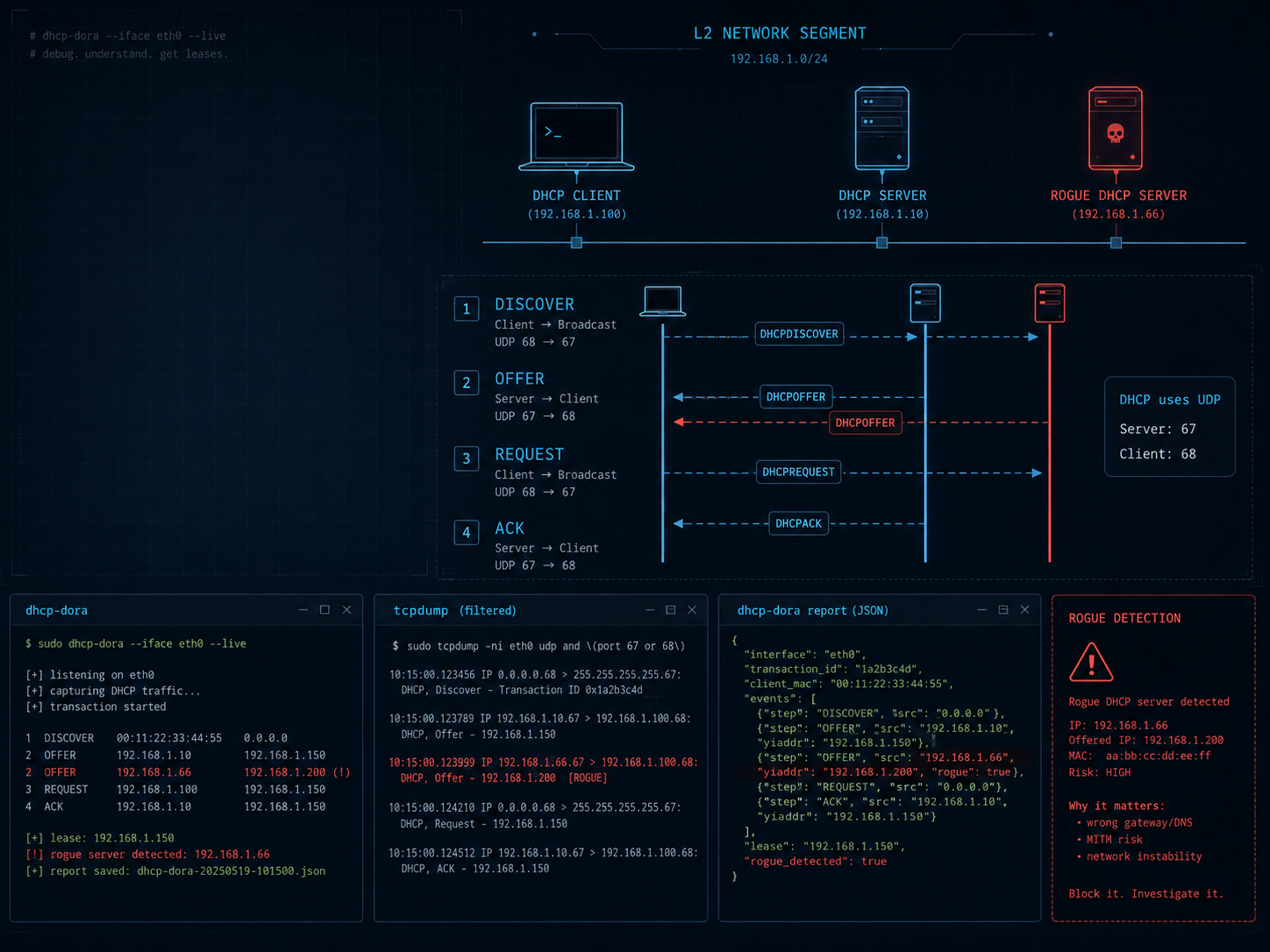
When DHCP stops working, the network often looks like everything broke at once. The machine has no address, DNS is dead, the gateway is empty, and your first instinct is to restart the router, the switch, and whatever patience you still have left.
DHCP usually fails in a much less dramatic way. One packet disappears. A reply comes back through a path your socket is not listening on. A firewall drops UDP 68. Or there is a second DHCP server in the segment handing out addresses from nowhere. That is why I built a small tool called dhcp-dora.
Repository: https://repo.noop.re/drops/dhcp-dora
What are we actually debugging in DHCP?
DHCPv4 uses broadcasts and UDP ports 67/68. The client usually does not have an IP address yet, so it cannot just talk to the server over normal unicast TCP. It shouts inside the L2 segment: “does anyone have an address for me?”.
The classic flow is DORA:
- DISCOVER – the client looks for a DHCP server.
- OFFER – the server offers an address and network options.
- REQUEST – the client selects an offer.
- ACK – the server confirms the lease.
If your diagnosis stops at “I do not have an IP”, you still know almost nothing. You need to know which part of DORA failed.
Did DISCOVER leave through the right interface? Did OFFER come back? Did the client pick the right server? Did it receive ACK or NAK? Is there a second DHCP server on the network? These are useful questions. Without them, debugging becomes a restart ritual.
Common DHCP problems that look the same at first
The first classic: the client and server are not in the same L2 segment. DHCPv4 relies on broadcasts, so a regular router will not forward them. If you have VLANs, private VLANs, Wi-Fi client isolation, or AP isolation, the client may never see the server.
The second one: the wrong interface. A laptop may have Wi-Fi, Ethernet, VPN, virtualization bridges, and container interfaces. DHCP on en0 may work fine while bridge100 gives you silence. A tool should force you to name the interface, because guessing here creates more trouble than it saves.
Third: a firewall or the system DHCP client is holding port 68. On Windows, the DHCP Client service can interfere with tests, and Defender Firewall can block inbound UDP 68. On macOS, you may run into Application Firewall, pf, and Gatekeeper if the binary was downloaded from the internet.
Fourth: a rogue DHCP server. This one hurts because the network “works”, just not reliably. Sometimes clients get the wrong gateway, wrong DNS, or an address from the wrong pool. A test VM with dnsmasq left in the wrong VLAN can waste a surprising amount of time.
Why I wrote dhcp-dora
I wanted a simple CLI that answers two questions:
- does the DHCP server complete the full DORA handshake?
- is anyone else answering in this segment?
You can do this by hand with tcpdump or Wireshark. Sometimes you still should. But I do not always want to start by reading packets, especially when I need a fast test across a few systems or a clean result to paste into an issue.
dhcp-dora is written in Go and focuses only on DHCPv4. It has two modes: dora for the full DISCOVER, OFFER, REQUEST, ACK test, and probe for detecting unexpected DHCP servers.
The project is still in development. Release binaries are available for Linux, macOS, and Windows on amd64 and arm64. The current lab checklist in the repository covers v0.1.3; Linux is verified, macOS was verified on v0.1.2, and Windows has a manual checklist prepared for testing.
dora mode: full handshake without guessing
The simplest test is:
dhcp-dora dora --iface eth0The result tells you whether the full handshake completed. The report includes:
- DHCP server IP
- offered IP address
- subnet mask
- gateway
- DNS servers
- lease time
- per-phase timings in milliseconds.
You can also target a specific server:
dhcp-dora dora --iface eth0 --server 192.168.1.1That helps when you suspect extra replies. The tool accepts an offer only from the selected server, while other offers are still recorded in the report as foreign_offers.
There is JSON output as well:
dhcp-dora dora --iface eth0 --jsonThat sounds minor until you want to compare results from several hosts or put the test into a script. Timings are in milliseconds, and the fields follow a stable schema.
probe mode: hunting for rogue DHCP
The second mode collects DHCP offers for a chosen duration and classifies servers against an allowlist:
dhcp-dora probe --iface eth0 --trusted 192.168.1.1 --duration 15sEvery responding server gets a TRUSTED or ROGUE verdict. If you want to use it as an automation check, add:
dhcp-dora probe --iface eth0 --trusted 192.168.1.1 --duration 15s --fail-on-rogueWith that flag, any rogue responder exits with code 1. Without it, the tool still reports the rogue server, but the command can exit 0 because the report itself was collected successfully.
You can keep trusted servers in a file:
192.168.1.1
# backup DHCP on corp VLAN
192.168.2.10
Then run:
dhcp-dora probe --iface eth0 --trusted-file trusted.txt --duration 15sBad lines go into warnings instead of killing the test immediately. That is intentional. Real config files have comments, blank lines, and occasionally a typo. The test should show that, not pretend nothing happened.
What to do when there is still no reply
dhcp-dora does not replace a packet capture. It shortens the path to the point where you know what to inspect next.
On Linux and macOS, the usual capture is:
sudo tcpdump -ni <iface> udp port 67 or 68Look for two things:
- DISCOVER leaving the client, usually source port 68 to destination port 67
- OFFER returning from the server, source port 67 to destination port 68.
If DISCOVER does not leave, the problem is on the client side: interface, permissions, or local networking. If DISCOVER leaves but OFFER does not return, look at the L2 segment, VLANs, DHCP server, or a firewall in the path. If OFFER is visible in tcpdump but the tool does not see it, the problem is closer to the OS, socket behavior, or local firewall.
On Windows, the repository checklist suggests pktmon or Wireshark with this filter:
udp.port == 67 || udp.port == 68It is also worth checking the DHCP Client service:
sc query dhcpFor tests, you may need to stop the service and allow inbound UDP 68 in the firewall. Put the system back the way it was after the test.
OS differences are boring until they break the test
Linux is the easiest path. dhcp-dora can use a raw AF_PACKET socket and does not need to bind to port 68, so it avoids some conflicts with other services. Run it as root or grant the binary a capability:
sudo setcap cap_net_raw+ep /usr/local/bin/dhcp-doraOn macOS, the tool needs root because it binds to privileged port 68. After downloading a release binary, remove the quarantine attribute:
xattr -cr dhcp-doraOn Windows, you have the elevated PowerShell prompt, the DHCP Client service, firewall rules, and SmartScreen on first launch. None of this is interesting. It is exactly the kind of boring detail that steals time when you do not have a checklist.
A bug that showed up along the way
In v0.1.0, macOS and Windows had a problem with limited-broadcast replies. A server could answer in a way that the test did not see. That was fixed in v0.1.1: the UDP transport binds to 0.0.0.0:68, pins traffic to the selected interface, and sends DISCOVER/REQUEST to both 255.255.255.255:67 and the interface directed broadcast.
That is a good example of why DHCP debugging can lie to you. The server can work, the packet can exist, and the app can still miss it because of socket details and OS behavior.
Exit codes matter when this becomes a smoke test
The tool returns specific exit codes:
| Code | Meaning | ||
|---|---|---|---|
| 0 | ACK received or probe report collected successfully |
||
| 1 | run error, timeout, NAK, or --fail-on-rogue hit |
||
--iface |
|||
| 130 | probe interrupted by SIGINT, with a partial report |
That makes dhcp-dora usable in simple smoke tests. After a VLAN change, for example, you can run probe --fail-on-rogue and immediately know whether an unauthorized DHCP server answered in the segment.
Minimal test
First, check the interface:
ip -brief addrThen run DORA:
dhcp-dora dora --iface eth0 --json > dora.json
python3 -m json.tool dora.json
Then check for rogue DHCP:
dhcp-dora probe --iface eth0 --trusted 192.168.1.1 --duration 15s --json > probe.json
python3 -m json.tool probe.json
If something looks wrong, add a packet capture:
sudo tcpdump -ni eth0 udp port 67 or 68Only then would I start changing configuration. Not before.
What is next for dhcp-dora
The code is layered: transport, dora/probe logic, reports, and CLI. That should make it possible to add a TUI later without rewriting the core. For now, the useful work is testing on real networks and finishing the per-OS scenarios, especially Windows.
If you want to try it, download a release, verify SHA256SUMS, and run it in the same L2 segment as your DHCP server:
https://repo.noop.re/drops/dhcp-dora/releases/tag/v0.1.3
If you find a case where tcpdump sees OFFER but dhcp-dora does not, that is exactly the kind of report I want. Include the full command, dhcp-dora version, human output, JSON output, and a capture from tcpdump, pktmon, or Wireshark.
FAQ
What does DORA mean in DHCP?
DORA stands for DISCOVER, OFFER, REQUEST, ACK. It is the basic DHCPv4 handshake where the client finds a server, receives an offer, selects it, and gets the lease confirmed.
Why does DHCP not work through a router?
DHCPv4 uses broadcasts inside an L2 segment. A regular router usually does not forward them. If DHCP must work across subnets, you need a DHCP relay, often configured as ip helper-address or the equivalent on your platform.
How do I detect a rogue DHCP server?
Send DHCPDISCOVER and collect all DHCPOFFER replies in the segment. dhcp-dora probe does that and compares responders against a trusted IP list.
Does dhcp-dora support IPv6?
No. The project is DHCPv4 only, following RFC 2131. DHCPv6 is a different protocol and needs a separate diagnostic path.

Leave a Reply