AI is already decent at the first part of ops work: it can read logs, connect an error to a service, and suggest a command. Things get more interesting when it stops suggesting commands and starts running them on a server.
I do not mind a model coming up with systemctl restart nginx. That is the easy part. I mind giving that model a regular SSH session where it can run whatever it decides is the next sensible step. That can hurt in a homelab. It can hurt a lot more in production.
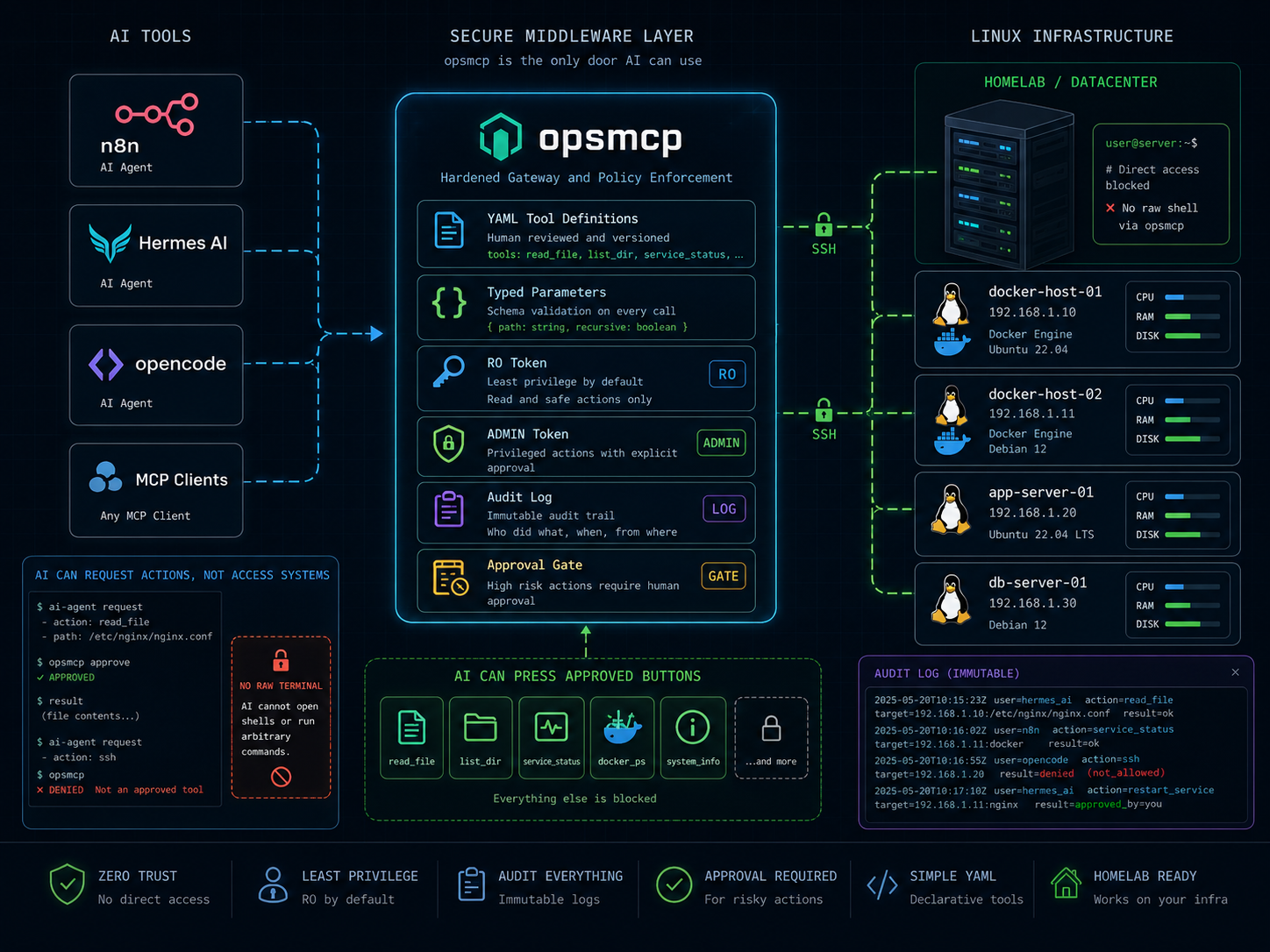
That is why I built opsmcp. It is an MCP server that sits between AI tools and servers. I wrote it mostly with n8n in mind, but it should also fit Hermes AI, opencode, and any client that can talk MCP. The agent does not get a shell. It gets a list of tools that I described in config first.
A prompt is not a security control
The simplest AI integration is tempting. You give an agent SSH access, ask it to “check nginx logs”, and it runs a command. Then you ask it to restart a service. Then to inspect containers. Then a request appears that you did not plan for, or the model picks the right command on the wrong host.
You can tell the model to be careful in the system prompt. I would still not treat that as access control. The model can misunderstand intent, the user can name the wrong container, and a tool with too much reach still has too much reach.
opsmcp cuts that down to something simpler: AI can only see operations the operator explicitly allowed.
Tools are defined in YAML, not invented at runtime
opsmcp is written in Go and exposes MCP tools over streamable HTTP at /mcp. Each tool is a specific SSH operation described in YAML: description, command, parameters, hosts, and risk level.
Example from the config:
tools:
  service_status:
    description: "Check systemd service status on the host"
    command: ["systemctl", "is-active", "{{service}}"]
    risk: read
    groups: [web, docker]
    parameters:
      service:
        type: enum
        values: [nginx, docker, vector]
The agent sees the service_status tool, its description, and the input schema. It does not see raw SSH. It cannot replace the value with nginx; rm -rf /, because service is an enum with three allowed values. If a call does not match the schema, opsmcp rejects it before opening a connection to the host.
When an enum is not enough, you can use a string, but it is still boxed in. A string parameter has a regex, max_length, and it also passes through a mandatory safe character set. Boring? Yes. Useful? Very. If a tool can touch servers, I prefer boring validation over a pretty disaster.
The host is controlled too
Every tool has an implicit host parameter, but opsmcp does not treat it as arbitrary user text. The server builds an enum from hosts described in hosts.yaml. If a tool uses groups or hosts filters, the available host list is reduced to machines where that operation makes sense.
That means you can make a tool available only to the web group, only to one machine, or to the intersection of both. If you set both groups and hosts, the host must match both conditions.
It sounds like a small detail, but it protects against a very normal mistake: right operation, wrong machine.
The command is argv, not a free shell
The main boundary in opsmcp is simple: the MCP client does not send a command to run. It sends a tool name and parameters.
The command lives in YAML as an argv template. Parameters are substituted only after validation. The server does not start a local shell, and the command sent over the SSH exec channel is assembled with POSIX quoting for arguments. Runtime values also have to pass the mandatory safe character set.
In practice, that means:
- the operator defines every tool ahead of time,
- parameters are
enum,integer, orstring, integerrequiresminandmax,stringrequires a regex andmax_length,- secrets do not go into YAML,
- host keys are pinned or checked through
known_hosts, host_key_accept_any: trueexists only as a development option.
I would not call this a sandbox for arbitrary code. It is closer to a panel with a few buttons. Each button has a description, a scope, and a risk level.
RO for reading, ADMIN for the sharper edges
opsmcp uses two tokens: RO and ADMIN. Tools have three risk levels: read, safe_write, and destructive.
A sample policy looks like this:
risk_policy:
  read: auto
  safe_write: auto
  destructive: approval
By default, read and safe_write can run with the RO token. destructive operations require the ADMIN token. If a workflow using the RO token tries to run a destructive tool, opsmcp returns 403 before opening SSH.
This maps nicely to n8n. A regular agent can check service status, disk usage, containers, and logs. A service or container restart can go through human approval, for example in Telegram. Only that approved workflow uses the credential with the ADMIN token.
This does not replace normal administration. You still need sane sudoers rules, secret handling, and a careful tool list. The difference is that the path from “show me logs” to “run arbitrary shell” does not exist inside opsmcp.
What it looks like in n8n
In the simplest setup, opsmcp runs next to n8n in Docker. The n8n MCP Client Tool connects to http://opsmcp:3000/mcp. Read-only work uses a credential with the RO token. Workflows with human approval use a separate credential with the ADMIN token.
A typical flow could look like this:
- the user asks: “what is running on docker01?”,
- the agent calls
docker_ps, - the user asks: “show me nginx logs”,
- the agent calls
docker_logsfor the selected container, - the user wants to restart the container,
- the agent asks to confirm the parameters,
- n8n starts the approval step,
- after approval,
docker_restartruns with the ADMIN token.
That is the level of automation I wanted. AI can help with operations, but it does not get the keys to the basement.
Every call leaves an audit line
Every tool execution writes one JSON line. The log includes time, tool name, host, parameters, risk level, token scope, shortened token ID, exit code, and duration.
Command stdout is not written into the audit line, because docker logs can return a lot of text. The audit trail should answer “who ran what”, not store the full command output.
For health checks there is /healthz. If you set OPSMCP_METRICS=1, opsmcp also exposes /metrics in Prometheus format.
Running it is boring on purpose
The repo includes a Dockerfile using a distroless static nonroot runtime, docker-compose, example hosts.example.yaml and tools.example.yaml files, a Makefile, and Forgejo Actions CI.
Quick local start:
cp .env.example .env
mkdir -p opsmcp
cp hosts.example.yaml opsmcp/hosts.yaml
cp tools.example.yaml opsmcp/tools.yaml
mkdir -p opsmcp/secrets
docker compose up -d
curl http://localhost:3000/healthz
Before starting it for real, validate the config:
make check-configThe repo also has releases with binaries for six platforms: Linux, macOS, and Windows, each for amd64 and arm64. The Docker image is published at repo.noop.re/drops/opsmcp.
What opsmcp intentionally does not do
There is no interactive SSH, SCP, SFTP, tunneling, or fleet management here. There is no built-in approval UI, no multi-role RBAC, and no user management beyond the token scopes.
That is intentional. opsmcp is meant to be a narrow layer between an MCP client and your servers. It receives a tool name, validates parameters, checks the token scope, and runs the defined operation over SSH. The rest stays where you already keep it: n8n, Prometheus, logs, sudoers, and secret management.
The less this layer does, the easier it is for me to decide whether I trust it.
Where I use it
I see opsmcp fitting repetitive ops tasks:
- checking service status,
- reading recent container logs,
- quick disk or network diagnostics,
- controlled restart of a selected service,
- an n8n workflow that diagnoses first and changes something only after approval,
- a homelab where you want AI convenience without exposing raw SSH.
If I need a full admin session, I open normal SSH. If I want to give an agent a few safe buttons, opsmcp is a better middle ground.
Code and first test
The code is here: repo.noop.re/drops/opsmcp.
Start with hosts.example.yaml and tools.example.yaml. Add one read-only operation, run make check-config, and connect the MCP Client Tool in n8n. The agent stops guessing commands, and you do not have to hand over the whole console.
